
Ascender Parent Portal Quick Guide
At the top right corner of the page you will see three icons: a bell, question mark, person.

- Bell: view alerts or create new alerts
- Question Mark: access to help resources
- Person: access to your account settings and logout
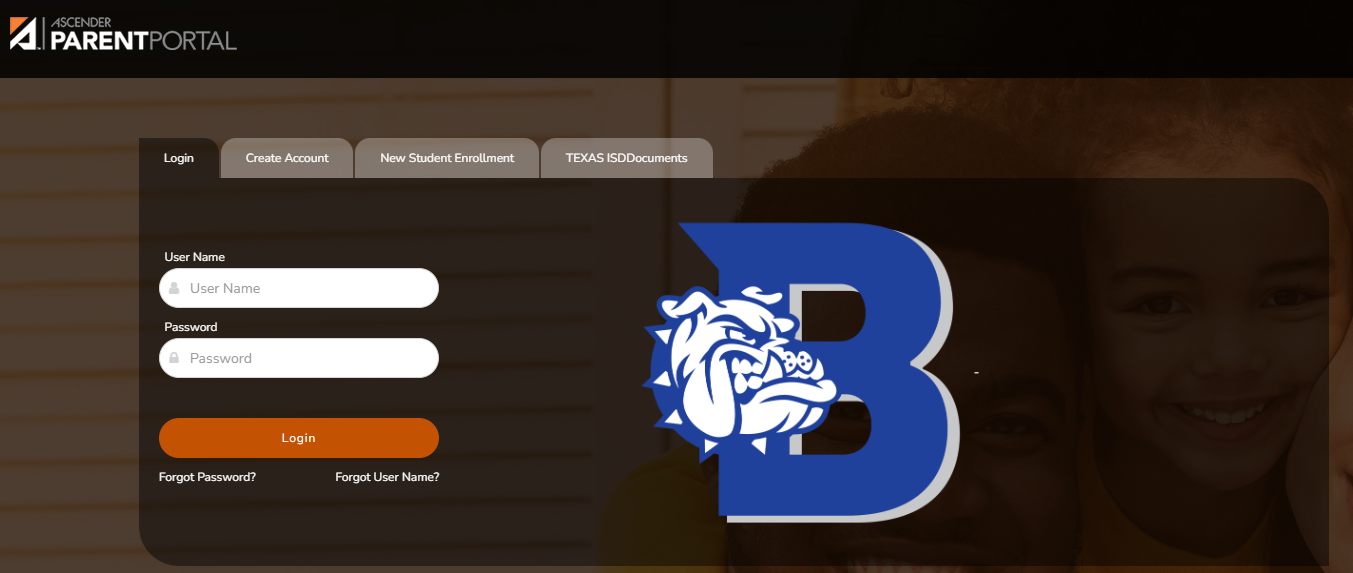
At the top left corner of the page you will see the Ascender logo – you can click the logo to get back to the home screen if needed (defaults to the summary page).

Underneath your students picture you will see the Published Grades section with two green buttons below it:
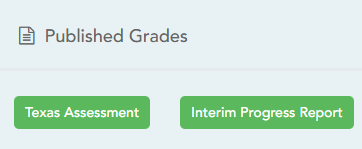
- Texas Assessment to take you to your students STAAR/EOC results.
- Interim Progress Report- Displays your students latest Progress Report
- Report Card- Displays your students latest Report Card
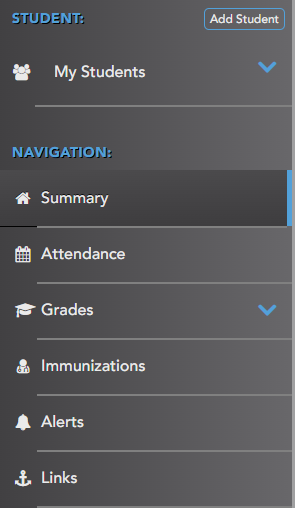
- My Students – select a student here
- Summary – class schedule and average
- Attendance – attendance – current and past
- Grades – cycle and semester averages; assignments
- Alerts – view/create alerts
Attendance
There are three views:
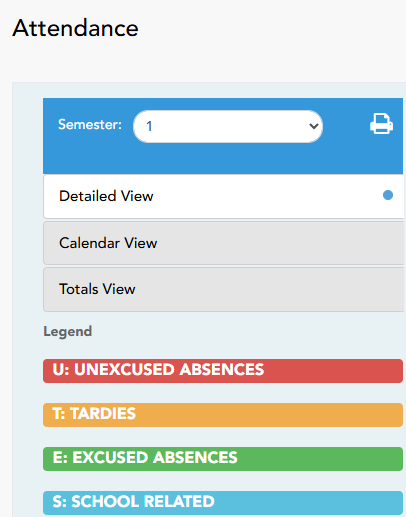
- Detailed: displays attendance details (types of absences, tardies)
- Calendar: displays in a calendar view
- Totals: displays tardy and attendance totals for the semester
Grades
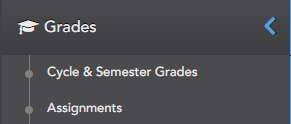
Cycle Grades: displays current grade averages for the current cycle and posted averages for previous cycles. Users can click on the hyperlinked grade average to get a popup window to view assignment grades for the current semester.
Semester Grades: displays your student’s posted semester and final averages. This data is only available for closed semesters.
Assignments
- Course: select a specific course to view assignments for that course
- Cycle: select a specific cycle
- View: select type of assignments to view
- Click Find Assignments
Help: the question mark on the top right corner of the page has instructions specific to what page you are currently on. Please contact your child’s campus office if you have any questions.

CLICK THIS LINK FOR THE PORTAL: https://portals20.ascendertx.com/ParentPortal/login?distid=010902
- Parents will be able to use their current Parent Portal account information to access their student’s information for grades and attendance.
- Mobile Devices (phones, tablets): Parents need to use a browser to access the Parent Portal.
Tips:
Use the latest version of these Recommended Browsers for the best experience.
Computer:
- Chrome
- Safari
- Internet Explorer 11
iPhone/iPad:
- Safari
Android:
- Chrome
To add a shortcut to your homescreen on an iPad or iPhone:
Please note: Each mobile device may have slightly different steps to add an icon.
1. In a web browser, access the Parent Portal from the Bandera ISD website.
2. When the Ascender Parent Portal login screen appears, tap the Share icon (location may vary according to the browser used).
3. Tap on Add to Home Screen. A message indicating an icon will be added to the home screen will appear - you can rename it at this time then click Add. Now you will have an icon on your home screen.
___________________________________
The Parent Portal allows parents and students to view grades (grades 1-12), assignments (grades 1-12) and attendance (all grades). Parents and students can access the Parent Portal anywhere with an internet connection. Help topics can be found on any page in the top right corner. The language in which a page is displayed can be changed by clicking one of the available languages at the bottom of the page.
Once you have successfully created an account. The Parent Portal will keep you informed of your child's performance. You can setup alerts for any failing averages, any failing assignment grades and any unexcused absences. Alerts can be sent via email or text using the email address or cell phone number you register with your account. You are also able to subscribe to additional alerts or turn off alerts.
Bandera ISD realizes that parent involvement is the key to student success, both in school and throughout life. We hope that you will use the Parent Portal to monitor your child's progress and we look forward to providing you with the tools needed to support your child.
Please contact your student's campus if you have any questions.
Alkek Elementary: 830-460-3900
Hill Country Elementary: 830-460-3901
Bandera Middle School: 830-460-3899
Bandera High School: 830-460-3898